
eWay-CRM (Microsoft 365) requires admin consent
Description
When attempting to sign in to a Microsoft 365 account via eWay-CRM, a screen similar to this one is displayed:

If you see an approval request, it means that your company has a higher level of security enabled in Microsoft 365. To work with your emails, calendar, and contacts, eWay-CRM requires the appropriate permissions. These permissions can only be granted by your Microsoft 365 administrator. If you are not the administrator, forward the request to them using one of the options below.
This is not an eWay-CRM error. It is a standard Microsoft security step in which the Microsoft 365 administrator confirms that the application is allowed to work with company data.
Versions
All versions of eWay-CRM
Difficulty
Medium
Resolution
When connecting eWay-CRM 365 to your contacts, emails, or calendar, approval from your Microsoft 365 administrator may be required.
This is because eWay-CRM not only reads data but also writes some information back to Microsoft 365, such as categories. It therefore needs permission to make these changes.
Table of Contents
Ways in which the consent request may appear to the user:
- Option 1: User has administrator access to the Microsoft 365 account
- Option 2: User does not have administrator access to the Microsoft 365 account
- Option 3: Dialog without the option to send a request to the administrator
Instructions for administrators:
- Solution 1: Approval in the Azure portal (Microsoft 365 administrator access required)
- Solution 2: Approval by URL (Microsoft 365 administrator access required)
Ways in which the consent request may appear to the user
Option 1: User has administrator access to the Microsoft 365 account
If the following dialog appears, obtaining consent is fairly intuitive.
The user simply clicks to agree to the permissions, thereby granting consent. Just click Accept and consent is granted.
The dialog may also include a checkbox to grant consent on behalf of the entire organization. If this checkbox is available, we recommend checking it to grant tenant-wide consent.
Option 2: User does not have administrator access to the Microsoft 365 account
If the user does not have a Microsoft 365 administrator account, the consent request dialog will look similar to this:

If you are not a Microsoft 365 administrator, ask your IT administrator for approval. You can write, for example:
“Please approve this application. I will use it for…”
Option 3: Dialog without the option to send a request to the administrator
The dialog looks roughly like this:

In this case, it is necessary to follow Option 3 above and contact the administrator through another channel to have them grant consent to the user.
Instructions for administrators
How to grant admin consent is described in the official Microsoft documentation: https://learn.microsoft.com/en-us/entra/identity/enterprise-apps/grant-admin-consent?pivots=portal#construct-the-url-for-granting-tenant-wide-admin-consent
Solution 1: Approval in the Azure portal (Microsoft 365 administrator access required)
The path to approval for email, contacts, and calendar integration with eWay-CRM:
- Go to the Azure Portal and sign in with an administrator account.
- Go to Enterprise Applications.
- Find eWay-CRM (Microsoft 365) (with ID 30940529-6f4b-4774-872c-0c008a2a5ad3).
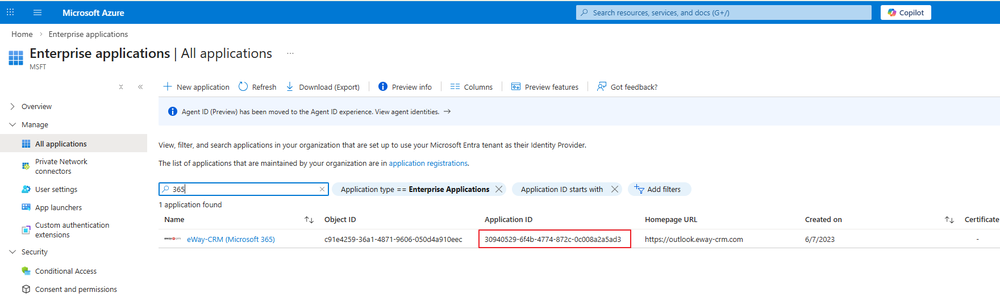
- Click on the application details.
- Then go to Security > Permissions and here you need to select Grant admin consent for My Company.


Solution 2: Approval by URL (Microsoft 365 administrator access required)
In addition to granting consent in the Azure Portal, there is also an option to provide admin consent via a direct URL. However, to obtain the URL, you need to know the tenantId of the user's company or verified domain name of the tenant filled instead of {organization}.
URL example:
https://login.microsoftonline.com/{organization}/adminconsent?client_id=30940529-6f4b-4774-872c-0c008a2a5ad3
The GUID at the end is the ID of our production application.