
Field Type: Link
The Link field is intended for storing web addresses, email addresses, and other types of links (up to a maximum of 255 characters). In eWay-CRM Desktop, the field can also be used for links to local or network files and folders.
For security reasons, eWay-CRM Online cannot open files and folders stored directly on a computer's local drive or a network drive. Therefore, to share files in eWay-CRM Online, use a web link, such as one to SharePoint, OneDrive, Microsoft Teams, or Google Drive.
Create Field and Set Its Attributes
You can set specific attributes when you are creating the field (values in the picture are only examples):
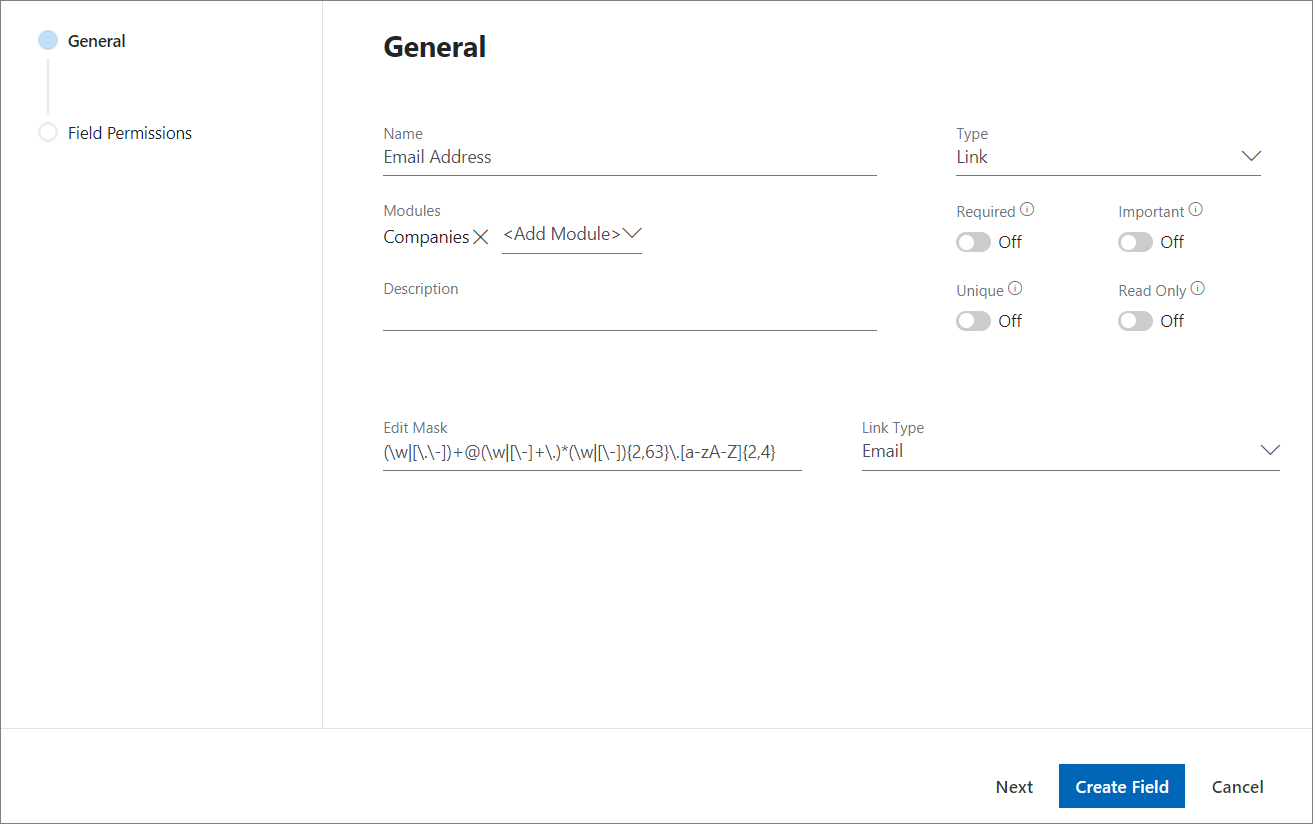
| Attribute | Description |
|---|---|
| Name | Mandatory field that sets also the title of the field that will be displayed in the dialog. |
| Modules | Select for what modules will be field created. |
| Required | Set that all users must fill this field. |
| Important | Set that all users will be informed that the field is empty if not filled before saving. |
| Unique | Set that all users must fill this field with a unique value. |
| Read Only | Set that all users see this value but will not be able to edit it. |
| Description | Optional description of the field. |
| Edit Mask | See description below the table. |
| Link Type |
eWay-CRM offers these link types: General, Email, File and URL. See below for more information. Availability: Different types of links are available since eWay-CRM 5.2.2. |
Link Type
| Link Type | Description |
|---|---|
| General | Allows you to enter a general link. Web addresses work in both eWay-CRM Desktop and eWay-CRM Online. Some special link types may also be supported in eWay-CRM Online, for example mailto:, tel:, msteams:, onenote:, or eway://. Their behavior may depend on where the link is displayed. |
| The field is intended for an email address. Clicking the address allows you to create a new email. | |
| File | In eWay-CRM Desktop, you can enter a path to a file or folder and open it afterwards. eWay-CRM Online cannot open local or network files and folders. For use in eWay-CRM Online, we recommend entering a web link to a file stored, for example, in SharePoint, OneDrive, Microsoft Teams, or Google Drive instead of a local file path. |
| URL | The field is intended for web addresses. Clicking the link opens the page in a web browser. In eWay-CRM Online, if the protocol is omitted, for example example.com, https:// is added automatically. |
Links to Files in eWay-CRM Online
Important: eWay-CRM Online cannot open local or network paths to files and folders.
This applies, for example, to addresses such as:
C:\Documents\contract.docx\\server\share\contract.docxfile:///C:/Documents/contract.docx
For security reasons, web browsers do not allow a web application opened over HTTPS to directly access such files.
If a file needs to be available in eWay-CRM Online, use its web address instead of a local or network path, for example a link to a file or folder stored in:
- SharePoint,
- OneDrive,
- Microsoft Teams,
- Google Drive,
- or another service accessible via an
https://web address.
Examples:
| Entered Value | eWay-CRM Desktop | eWay-CRM Online |
|---|---|---|
https://example.com |
Yes | Yes |
example.com |
Yes | Yes, https:// is added automatically |
C:\Documents\contract.docx |
Yes | No |
\\server\share\contract.docx |
Yes | No |
| Web link to a file in SharePoint | Yes | Yes |
Edit mask
Specific custom fields have an option of editing their mask. This is a way of limitation the values that can be written in this fields by user. Mask is a string that determines what can be filled in a field - you can restrict inserting numbers, letters, signs, etc. For more information, please click this link.
The mask can be used for the ensuring that field can be filled only by numbers (e.g. the date field) with no letters, etc. This is a partial control of inserted text.
The example mask in the picture is:
(\w|[\.\-])+@(\w|[\-]+\.)*(\w|[\-]){2,63}\.[a-zA-Z]{2,4}
The mask specifies that you can insert only email address into this field in the form "[email protected]".